

If you want to create smooth, stylish, and shareable videos, the first thing you need is a CapCut account. The capcut sign up process is simple, but many new users still look for a clear explanation or get confused between different sign-in options. This guide explains everything in simple words so you can start editing without any problem.
CapCut is widely used for short videos, social media reels, and quick edits. Having an account helps you save projects, use cloud backup, unlock more tools, and sync your work across devices. This blog follows the latest Google guidelines and provides helpful, authentic, and easy information without unnecessary terms.
 Why You Need to Complete CapCut Sign Up
Creating a CapCut account gives you access to:
Cloud storage for saving and accessing your video projects
Mobile and desktop sync so you can edit anywhere
Better templates and effects
Easy exporting and sharing
Collaboration options with teams or friends
Access to CapCut Web Editor
Without completing the capcut sign up, you can still edit videos, but your projects won’t sync, and you may miss important features.
How to Complete CapCut Sign Up (Mobile App)
Follow these steps for a smooth capcut sign up experience on your phone:
Step 1: Install CapCut
Download and install the app from:
Google Play Store (Android)
App Store (iPhone)
Step 2: Open the App
After installation, open CapCut. You will see an option to continue as a guest or create an account.
Step 3: Tap “Sign Up / Log In”
Go to the profile or user icon and choose Sign Up.
Step 4: Choose a Sign-Up Method
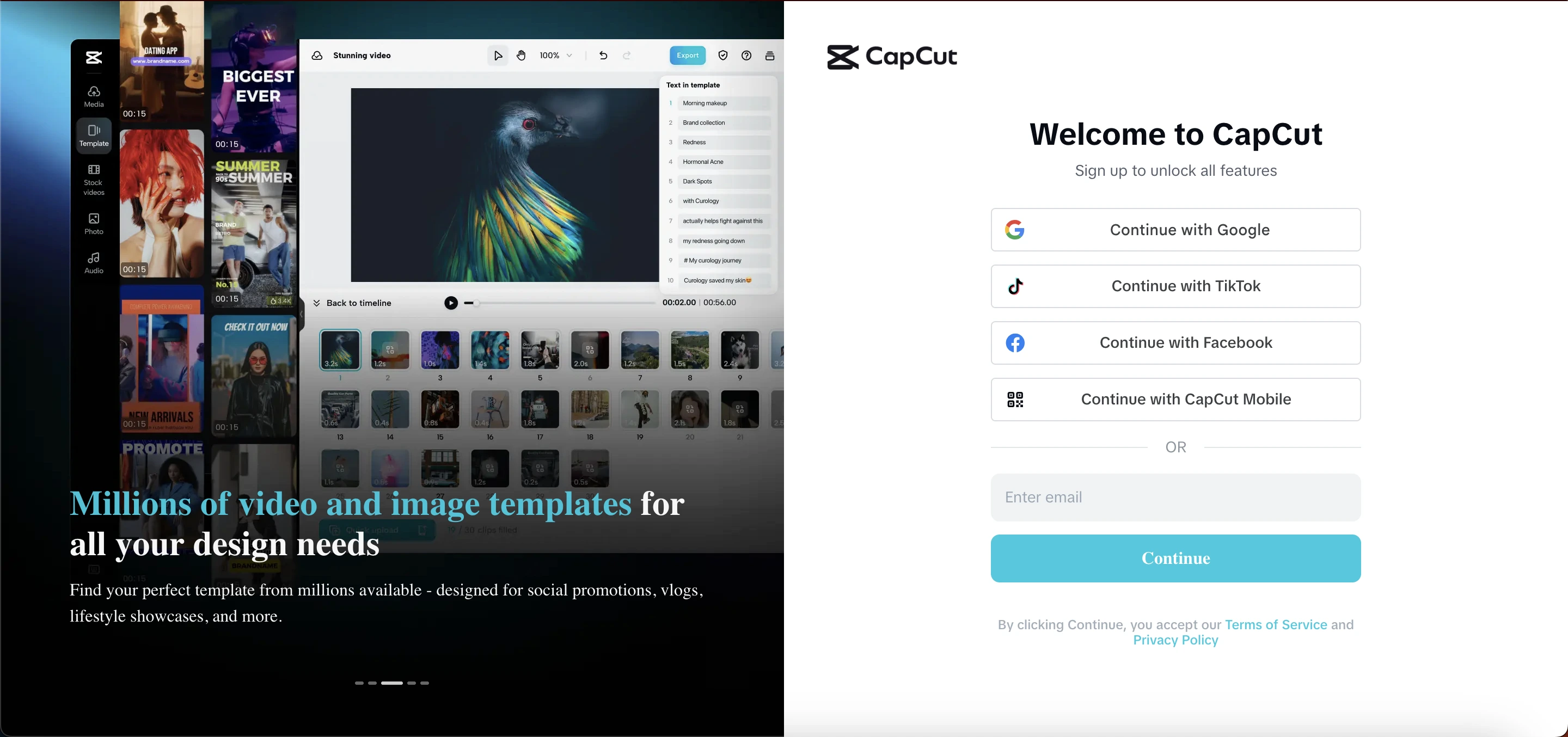
CapCut allows you to sign up using:
Email
Phone number
Google
TikTok
Facebook
Apple ID (iOS)
Choose whatever is easy for you.
Step 5: Verify Your Account
You will receive a verification code through email or SMS. Enter the code to confirm your account.
Step 6: Set Up Your Profile
You can add a picture, username, or keep your profile basic. This is optional.
That’s it—your capcut sign up is complete.
How to Complete CapCut Sign Up on Desktop (CapCut Web Editor)
CapCut also provides a free web editor that works in your browser.
Step 1: Visit the Official Website
Go to CapCut’s official website.
Step 2: Click “Sign Up”
You will see the option at the top-right corner.
Step 3: Choose a Method
You can sign up with:
Email
Google
TikTok
Facebook
Step 4: Verify Your Details
Enter the verification code sent to your email.
Now you can use the online editor with your account synced across devices.
Read Also: How to Make Your Voice Deeper?
Benefits of Completing CapCut Sign Up
Here are the top advantages:
Benefit | Explanation |
|---|---|
Cloud Backup | Keeps all your video projects safe in the cloud. Even if your device gets damaged or runs out of storage, your work remains saved and accessible. |
Sync Between Phone and PC | Lets you start editing on your phone and finish on your computer. Your projects stay updated across all devices for a smooth workflow. |
Access to Advanced Tools | Unlocks extra tools, resources, and templates that require an account. These help you create cleaner and more polished videos. |
Easy Sharing | Allows quick sharing to TikTok, Instagram, YouTube, and other platforms without saving or exporting separately. |
Collaboration | Enables you to work together with friends, classmates, or team members on shared projects, making group editing easier. |
Troubleshooting: Issues During CapCut Sign Up
Here are the most common problems and solutions:
1. Verification Code Not Receiving
Check spam or promotions folder
Try sending again
Make sure your email or phone number is correct
Ensure internet connection is stable
2. Account Already Exists
If you see this message, try logging in instead of signing up.
3. Unable to Use Social Login
Try a different method like email or phone.
4. Login Loop or App Freezing
Restart the app
Clear cache (Android)
Update the app to the latest version
These simple steps fix most capcut sign up issues.
Tips for a Smooth CapCut Account Setup
These tips help you start without confusion:
Use a valid email or phone number
Keep your login details saved
Update the app regularly
Turn on cloud sync for backups
Avoid using multiple sign-in methods for the same account
Following these suggestions keeps your capcut sign up process smooth and secure.
Is CapCut Free After Sign Up?
Yes, CapCut is free to use even after creating an account. Some advanced resources or premium effects may require extra payment, but the basic and intermediate tools are free.
The capcut sign up does not force you to pay anything. It simply gives you more access and convenience.
Features You Unlock After CapCut Sign Up
1. AI Background Remover
This tool lets you remove the background from your video or photo automatically. You don’t have to manually erase anything—the AI detects the subject and cleanly separates it from the background. It’s helpful for creating product videos, tutorials, or social media clips where you want a clean look or want to place yourself in a different scene.
2. Audio Extraction
With audio extraction, you can take sound from any video and save it as an audio file. This works well if you want to use music, dialogue, voiceovers, or sound effects from another clip. You can then use that audio in your new project, mix it with other sounds, or edit it for timing and quality.
3. Templates for Reels and TikTok
CapCut offers a large library of ready-made templates designed for Instagram Reels, TikTok, and YouTube Shorts. After signing up, you get access to more updated templates. Simply add your photos or videos into the template and CapCut automatically arranges transitions, effects, and timing. This saves time and helps beginners create smooth trending videos without editing skills.
4. Cloud Project Saving
Once you complete your CapCut sign up, you can save your ongoing projects to the cloud. This means your work stays safe even if you change devices or uninstall the app. You can start editing on your phone, switch to your laptop, and continue exactly where you left off. It also helps prevent losing your videos if your device storage is full.
5. Video Resizing
CapCut allows you to resize your videos for different platforms with one click. You can change the aspect ratio for TikTok, Instagram, YouTube, or Facebook without manually adjusting everything. CapCut also adjusts the position of your video so it looks properly centered after resizing.
6. Subtitle Generation
The subtitle generator creates automatic captions for your videos. It listens to your voice and turns your speech into text within seconds. You can edit the text style, color, and timing easily. This feature is great for creators because subtitles help videos get more views and make them easier to understand for everyone.
7. Filters, Transitions, and Effects
After signing in, you get access to a wider selection of filters and visual effects. These tools help you change the mood, color, and style of your videos. You can also add transitions between clips to make scenes flow smoothly. Whether you want a soft look, a cinematic style, or a fun, energetic effect, CapCut offers plenty of options.
8. CapCut Web Editor Access
When you complete your CapCut sign up, you can use CapCut directly from your computer browser without installing anything. The Web Editor offers a bigger workspace and more control, making it easier for detailed editing. Your cloud projects also sync automatically, so your progress stays updated across all devices.
CapCut Sign Up for Students and Professionals
CapCut is useful for:
Students
Making video assignments
Creating presentations
Editing short clips for projects
Creators and Influencers
Making TikTok or Instagram Reels
Editing travel videos
Creating tutorials or daily content
Professionals
Marketing videos
Product demos
Social media ads
A single capcut sign up supports all types of users.
Top 5 Alternatives to CapCut
If you want apps with similar features, here are the best options:
1. InShot
InShot is a popular mobile editing app known for its easy layout and quick tools. It offers smooth filters, transitions, trimming options, and speed controls. It is great for beginners who want to edit short videos for Instagram, TikTok, or YouTube without learning advanced features.
2. VN Video Editor
VN Video Editor has a clean and simple interface, which makes it perfect for new users. It supports multi-layer editing, offers stylish transitions, and exports videos without a watermark. Many creators like VN because it gives professional-style results without being complicated.
3. KineMaster
KineMaster is a more advanced mobile editor with powerful tools like multi-layer editing, audio mixing, color adjustment, and chroma key (green screen). It is ideal for users who want more control over their editing and need features beyond basic trimming and filters.
4. Filmora
Filmora is available on both mobile and desktop, making it suitable for all types of creators. It includes easy drag-and-drop editing, templates, effects, and audio tools. Filmora is known for being beginner-friendly while still offering strong features for detailed video editing.
5. Adobe Premiere Rush
Adobe Premiere Rush is designed for fast and clean editing, especially for social media videos. It provides simple controls, color presets, audio adjustments, and direct sharing to social platforms. If you want a lightweight version of Adobe’s editing tools, Premiere Rush is a reliable choice.
Conclusion
The capcut sign up process is quick, simple, and helpful for anyone who wants to save, sync, and improve their video editing experience. Whether you're a student, creator, or professional, having a CapCut account gives you better control over your projects. With this guide, you can complete the sign-up process easily and fix any issues along the way. If you are looking for simple and reliable video editing, signing up for CapCut is a great start.
Frequently Asked Questions (FAQs)
Is CapCut sign up required to edit videos?
No, you can edit without signing up, but features like cloud backup need an account.
Is CapCut sign up free?
Yes, it’s completely free.
Can I use the same account on multiple devices?
Yes, your account syncs across devices.
Can I delete my CapCut account later?
Yes, you can delete your account anytime from the settings.
Why is my verification code not arriving?
Check spam, try again, or use a different sign-up method.